

Google Helper
How to create a Firebase project and obtain google-services.json
The Arena SDK uses Firebase internally. For your Android app to work, you need to create a Firebase project, register your Android app, and download the google-services.json configuration file.
Step 1 — Create the Firebase project
Go to console.firebase.google.com and click Create a project. On the first screen, type your project name and click Continue.
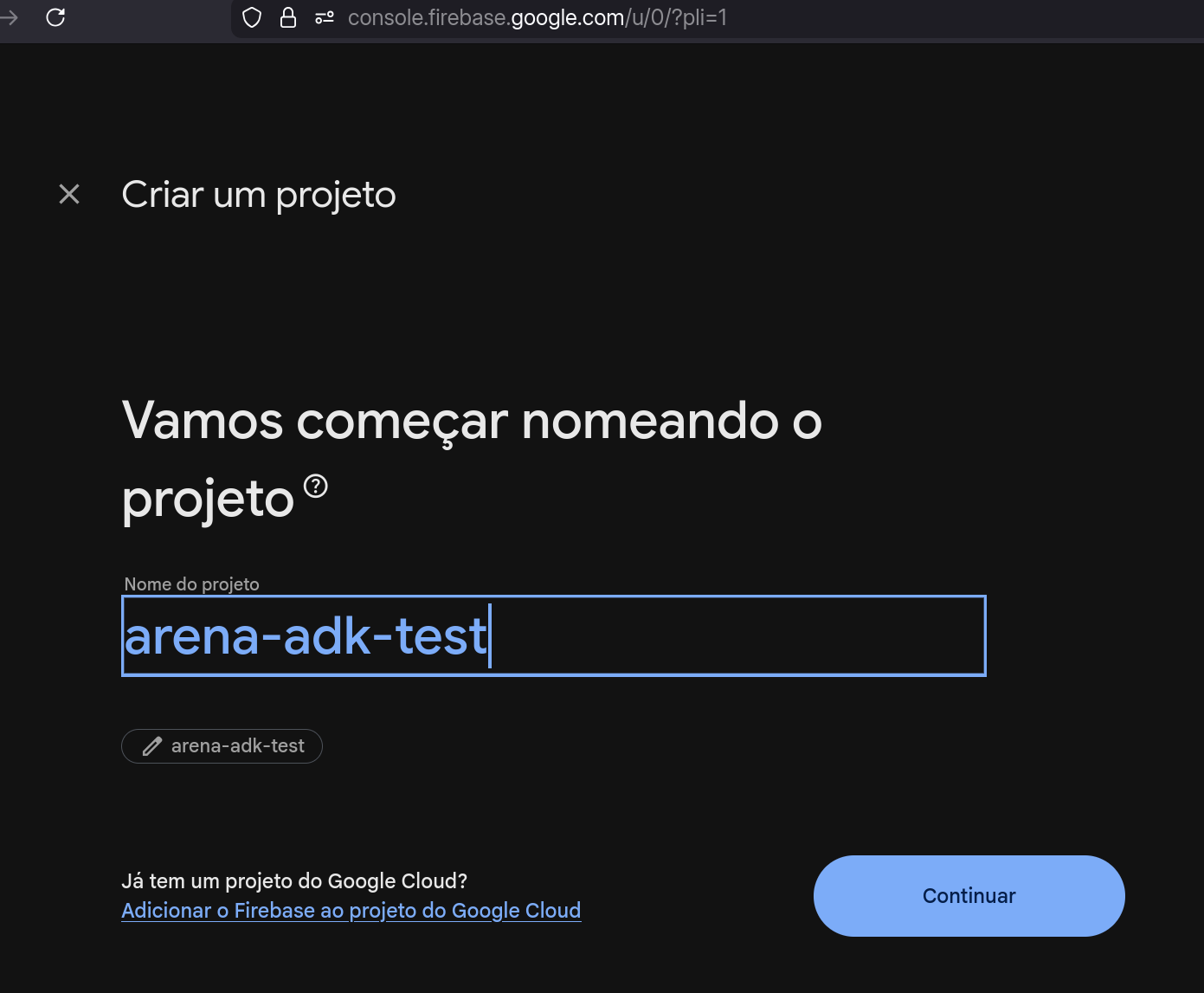
Firebase will suggest a project ID based on the name. You can edit it if needed. Note the ID — you may need it later.
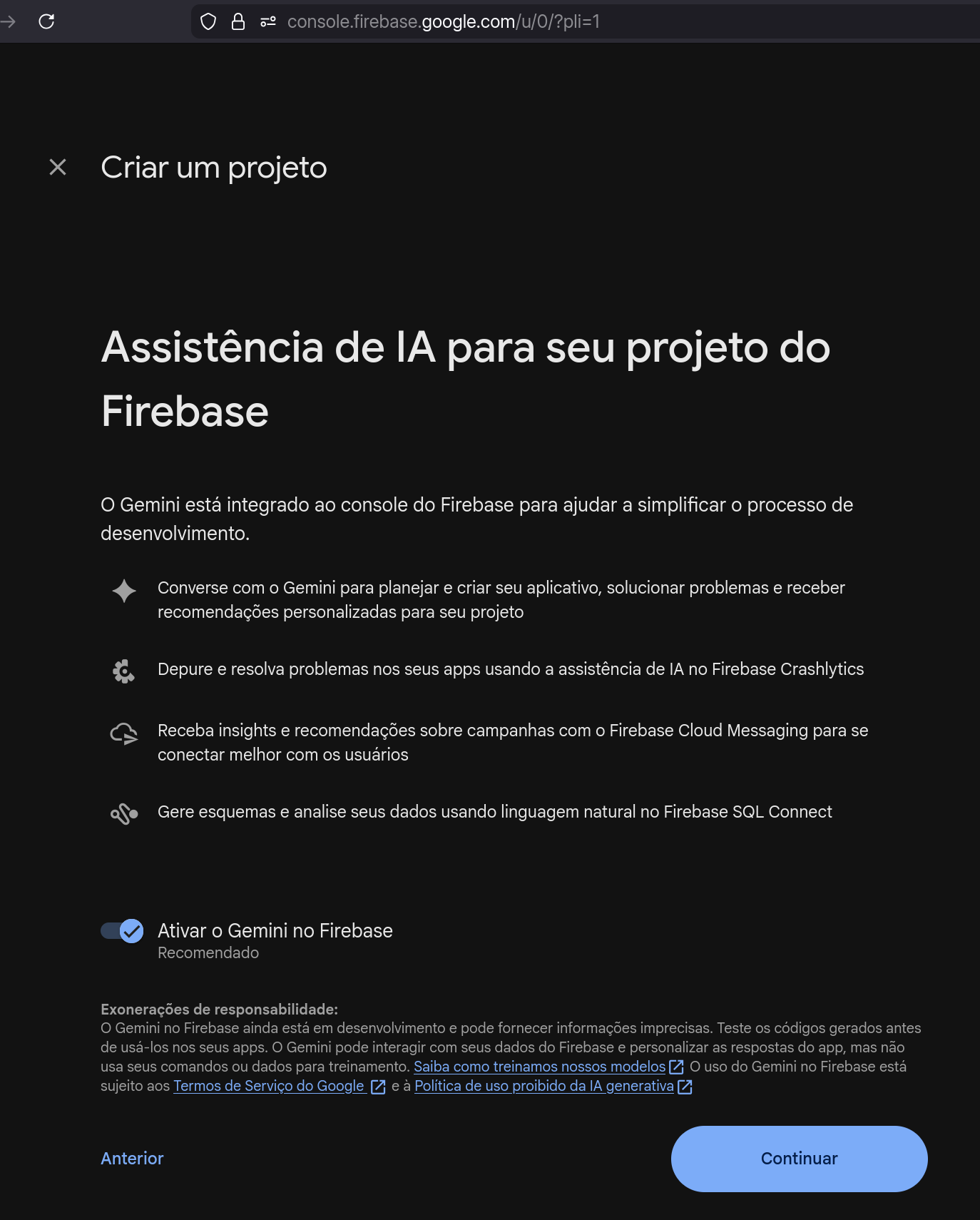
Step 2 — Enable Gemini (optional)
The next screen asks whether you want to enable the Gemini AI assistant for the project. This is optional. Click Continue.
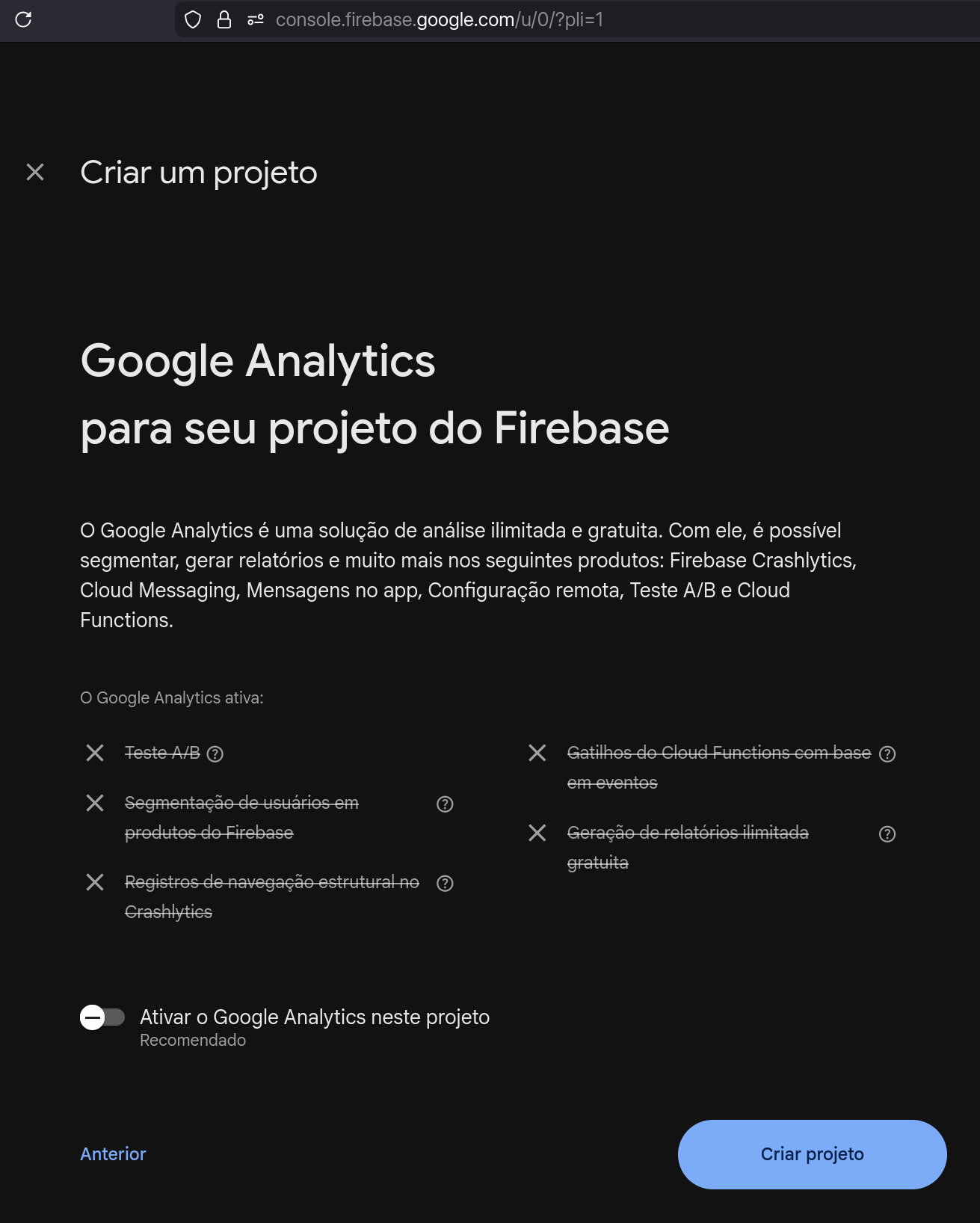
Step 3 — Enable Google Analytics (optional)
The following screen asks about Google Analytics. This is also optional for the SDK to work. Click Create project.
Step 4 — Wait for provisioning
Firebase will provision the project resources. Wait for the progress animation to finish.
Step 5 — Project created
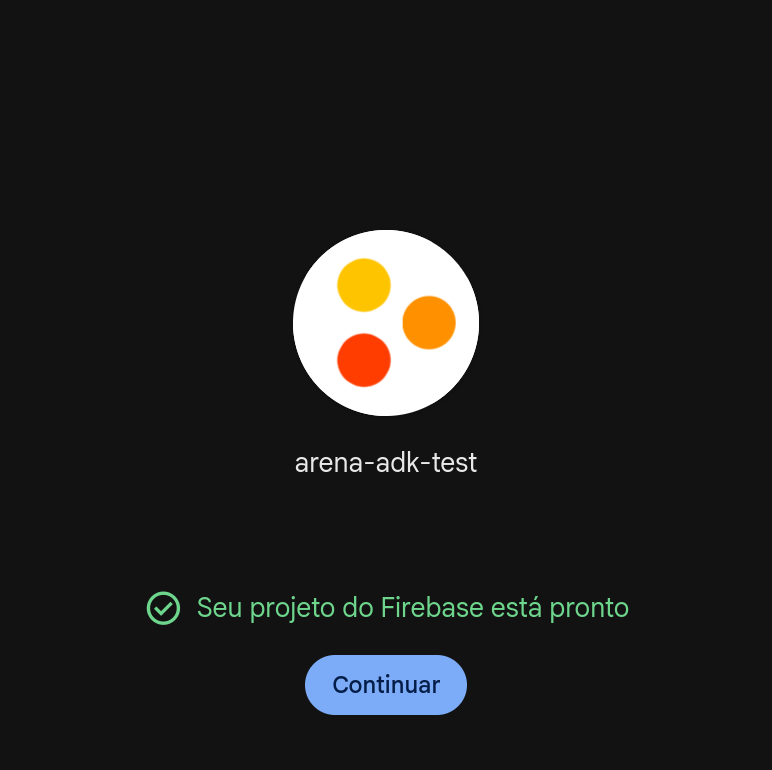
When the message "Your Firebase project is ready" appears, click Continue.
Step 6 — Open project settings
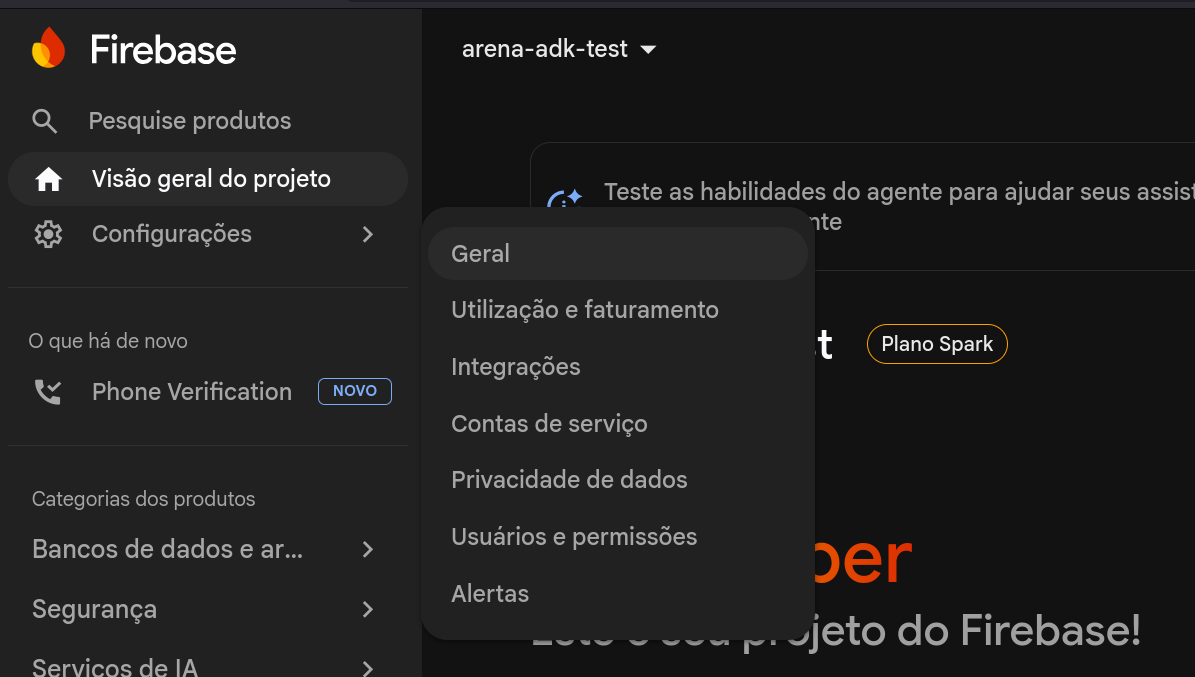
You will be taken to the project dashboard. Click the gear icon (⚙️) next to the project name at the top of the left sidebar and select General.
Step 7 — Add the Android app
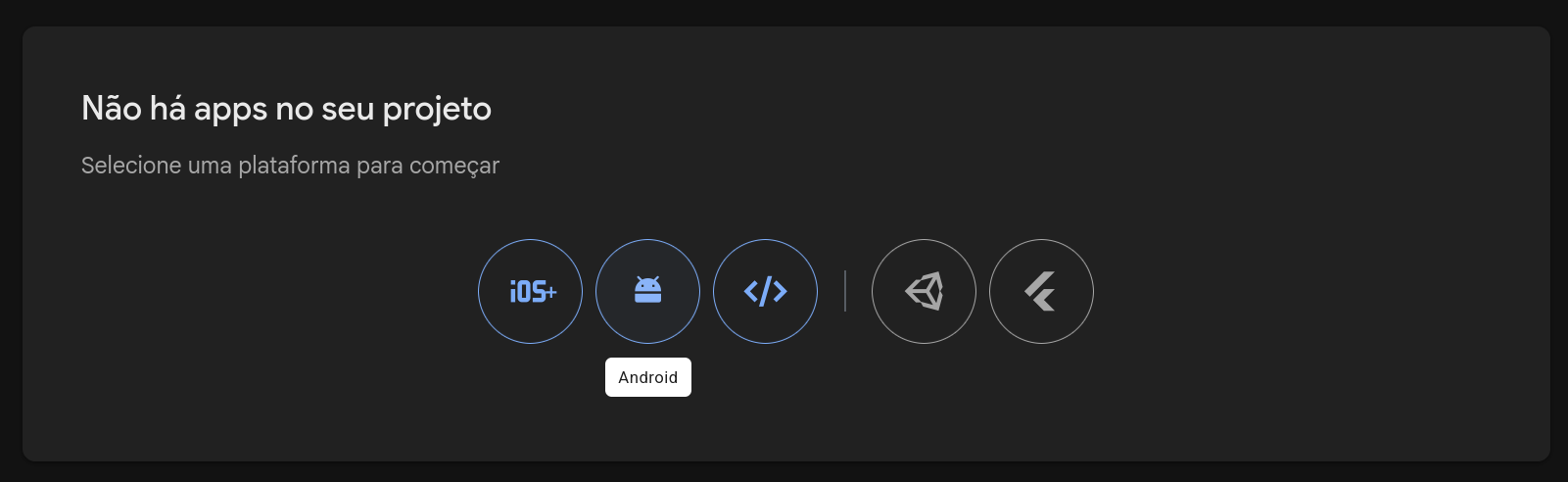
On the General Settings page, scroll down to the "No apps in your project" section and click the Android icon.
Step 8 — Register the app and download google-services.json
- In the Android package name field, enter your app's
applicationId(e.g.com.example.myapp). This must match exactly what is declared in yourapp/build.gradle. - The App nickname field is optional.
- Click Register app.
- On the next step, click Download google-services.json.
- Move the downloaded file into the
app/folder of your Android project (the same folder that contains the module-levelbuild.gradle).
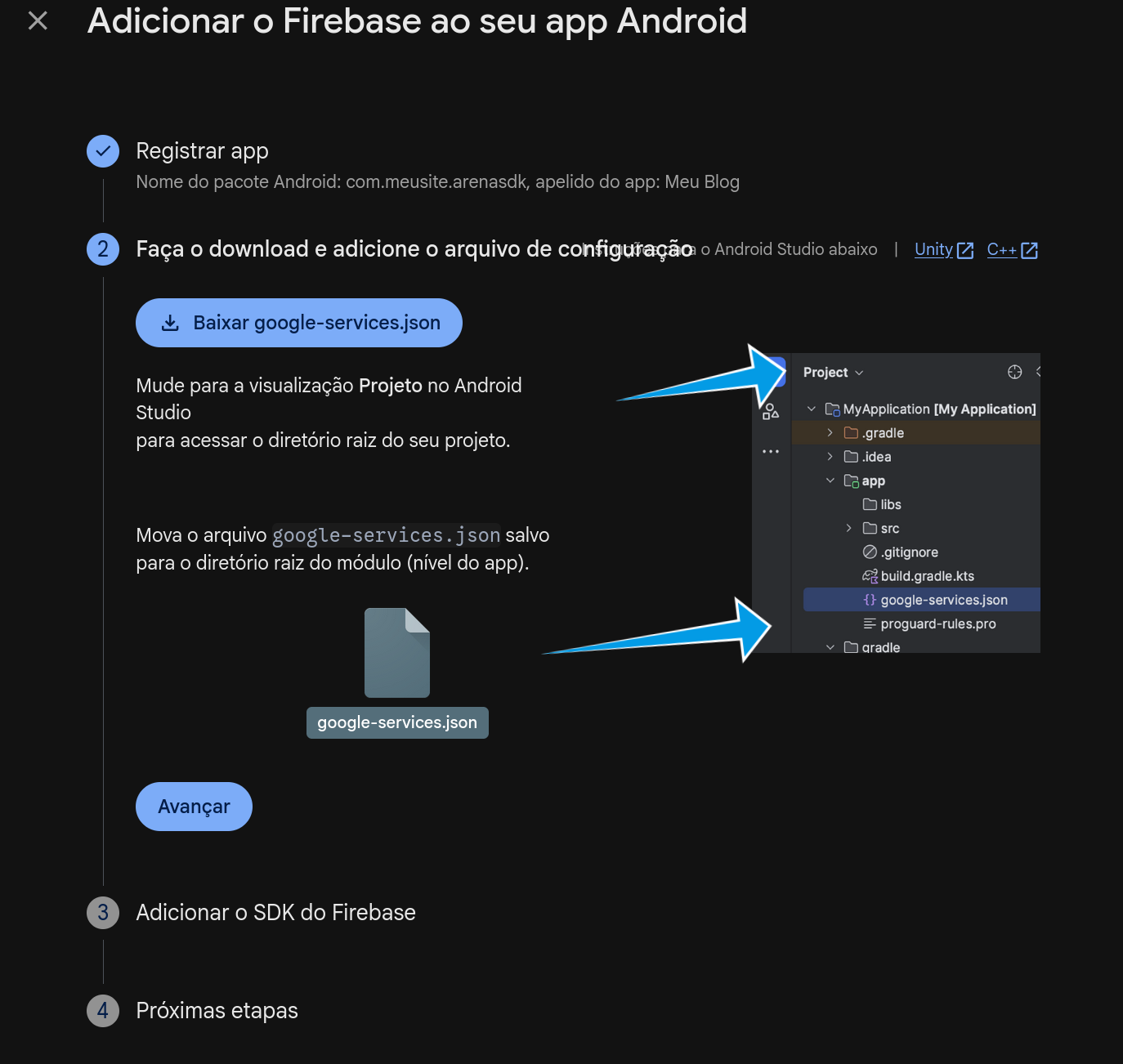
The final structure should look like this:
MyApp/
  app/
    google-services.json   ← here
    src/
    build.gradle
  build.gradle
  settings.gradle
Step 9 — Back to the SDK setup
With the google-services.json in place, return to the SDK README to continue the integration:
Updated 3 months ago